
Match, order and complete
Drag and drop
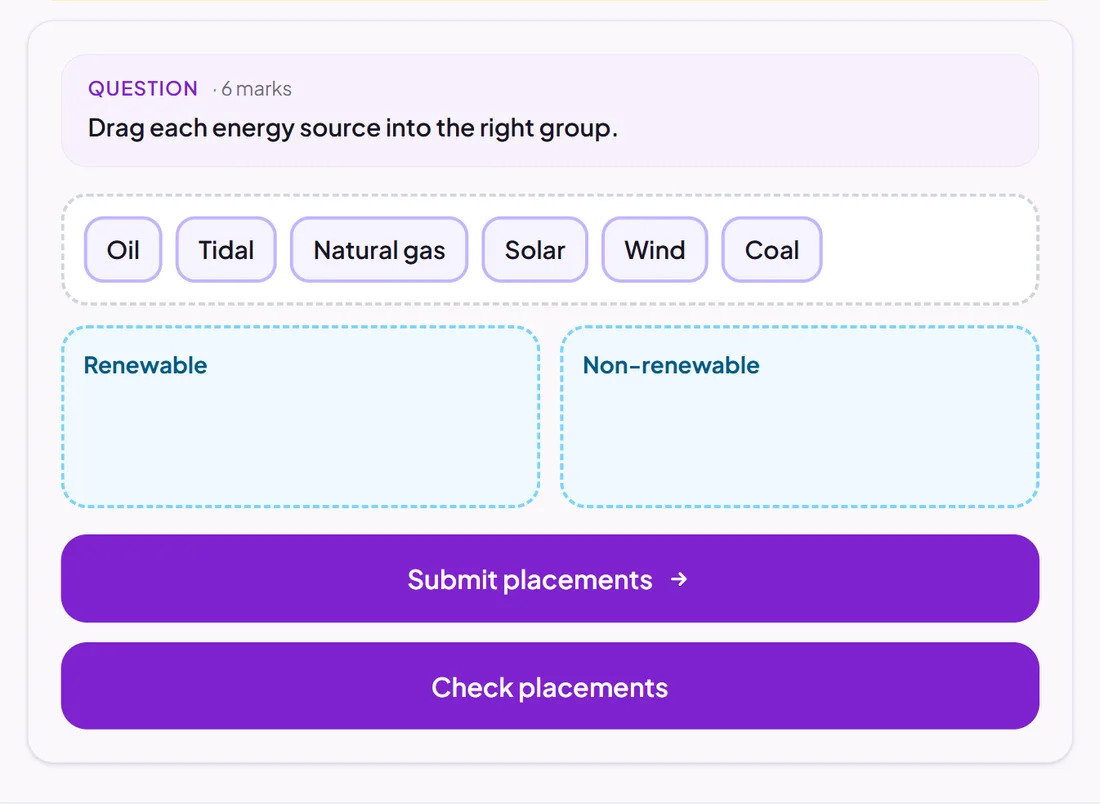
Pupils drag items into the right zones: groups, a diagram or a picture.
Marked automatically
Good for
Sorting into categories, and placing labels on an image.
How to set it up
- 1Open the assessment in the editor and choose Add question.
- 2Pick Drag and drop.
- 3Add the drop zones, then the items, and choose where each item belongs.
- 4Open Practice Preview to answer it as a pupil would, then run the readiness check before you set it.
Tips from the classroom
- An item can belong in more than one zone: tick every zone that is right.